
Installing on a Raspberry Pi
OpenWater Chartplotter installs on a Raspberry Pi like any other app: you download one file and open it. There is nothing to compile and no commands to type. After that, new versions arrive through the Pi’s own Software Updater.
What you need
- A Raspberry Pi 4 or 5. A Pi 4 with 2 GB of memory is enough.
- Raspberry Pi OS (64-bit) with the desktop, the version based on Debian 13 (“Trixie”). The Raspberry Pi Imager installs it onto a microSD card.
- A screen of 7in or larger. A touchscreen works; so does a mouse.
- An internet connection for the install and for updates. Once installed, OpenWater works without one.
Install
-
On the Pi, open the web browser and download openwater-chartplotter_0.1.5_arm64.deb.
-
Open the Downloads folder (the file manager’s sidebar), right-click the file and choose Package Install.
Don’t double-click it: the Pi treats the file as an archive and only shows you what is inside.
-
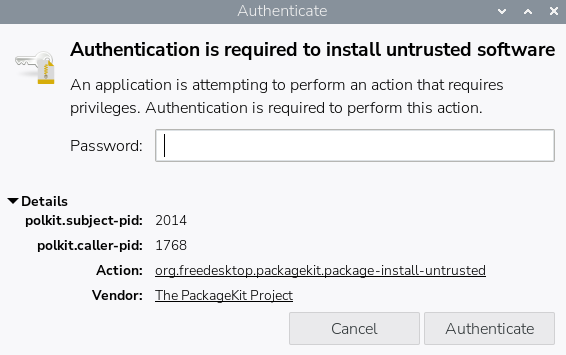
After a short wait, the Pi shows Authentication is required to install untrusted software. This is its standard warning for any program installed from a file you downloaded yourself, rather than from its own software list. Type the Pi’s password and press Authenticate, then wait for the install to finish.
-
When it finishes, open the Pi’s main menu (the Raspberry icon at top left), then Accessories, then OpenWater Chartplotter.
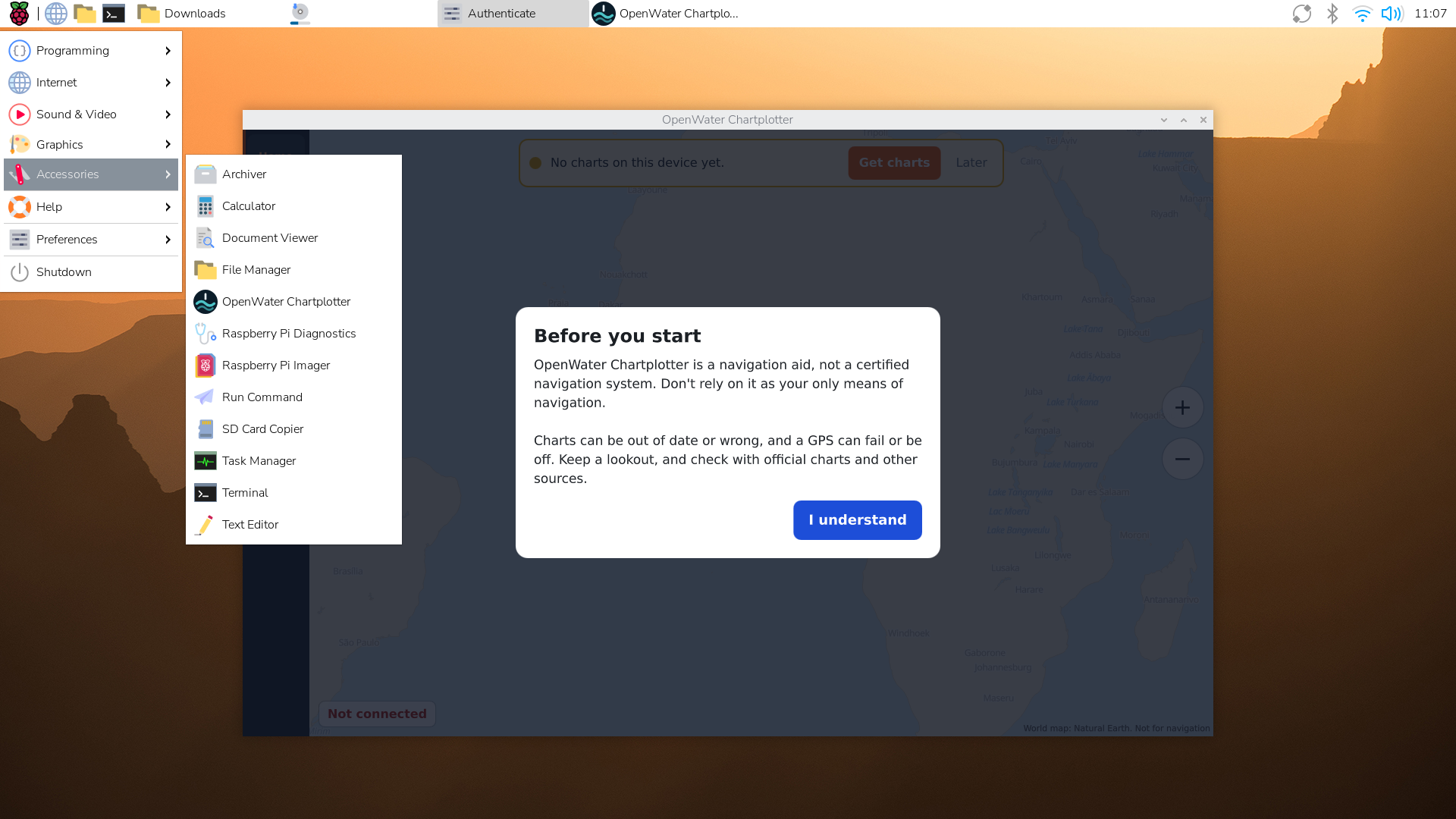
The first start shows a short Before you start notice about navigation safety; press I understand. Behind it is a map of the world and a banner, “No charts on this device yet”, with a Get charts button. Charts can also be added later under Settings, then Charts.
Full screen
OpenWater opens in a normal window. To make it look like a dedicated chartplotter, press Full screen in the bar on the side of the app (or press F11). Press Window (or F11) to go back. OpenWater remembers your choice for the next start.
Connecting a GPS
A USB GPS plugged into the Pi is found by itself; there is nothing to set up. Other sources, such as your boat’s network, are under Settings, then Connections.
Updates
The install also tells your Pi where new OpenWater versions come from. When one is released, it appears in the Pi’s Software Updater along with the rest of the Pi’s updates. Press Install Updates as you would for anything else.
The Pi checks for updates every few hours, so a new version can take a while to show up. To check straight away, log out and back in, then open the Software Updater again.
Removing OpenWater
Open Preferences, then Add/Remove Software, search for OpenWater, and remove it. This also stops the Pi from looking for OpenWater updates.
OpenWater is not a certified navigation system. Don’t rely on it as your only means of navigation, and keep a lookout.