
Installing on Windows
OpenWater installs on Windows from the Microsoft Store, like any other app. There is no installer file to download and no security warning to click through, and the Store keeps OpenWater up to date for you.
What you need
- Windows 11. The package also allows Windows 10 (version 1809 or later), but Windows 11 is what OpenWater is tested on.
- A Microsoft account signed in to the Store. A free one works.
- A screen of 7in or larger. A touchscreen works; so does a mouse.
- An internet connection for the install and for updates. Once installed, OpenWater works without one.
- For the beta: an invitation. The beta listing is hidden from the Store’s search, so you reach it through the link below. To join the beta, send an email to info@openwaterplotter.com. Let me know the email address linked to your Microsoft Account, and a bit about your boat and its current chartplotter setup.
Install
-
Open this link in your web browser: apps.microsoft.com/detail/restricted/9NQ7T8RQ8CJV.
-
If your browser asks whether to open the Microsoft Store, allow it. OpenWater’s page opens in the Store app.
-
Press Get (or Install) and wait for it to finish. The button then changes to Open.
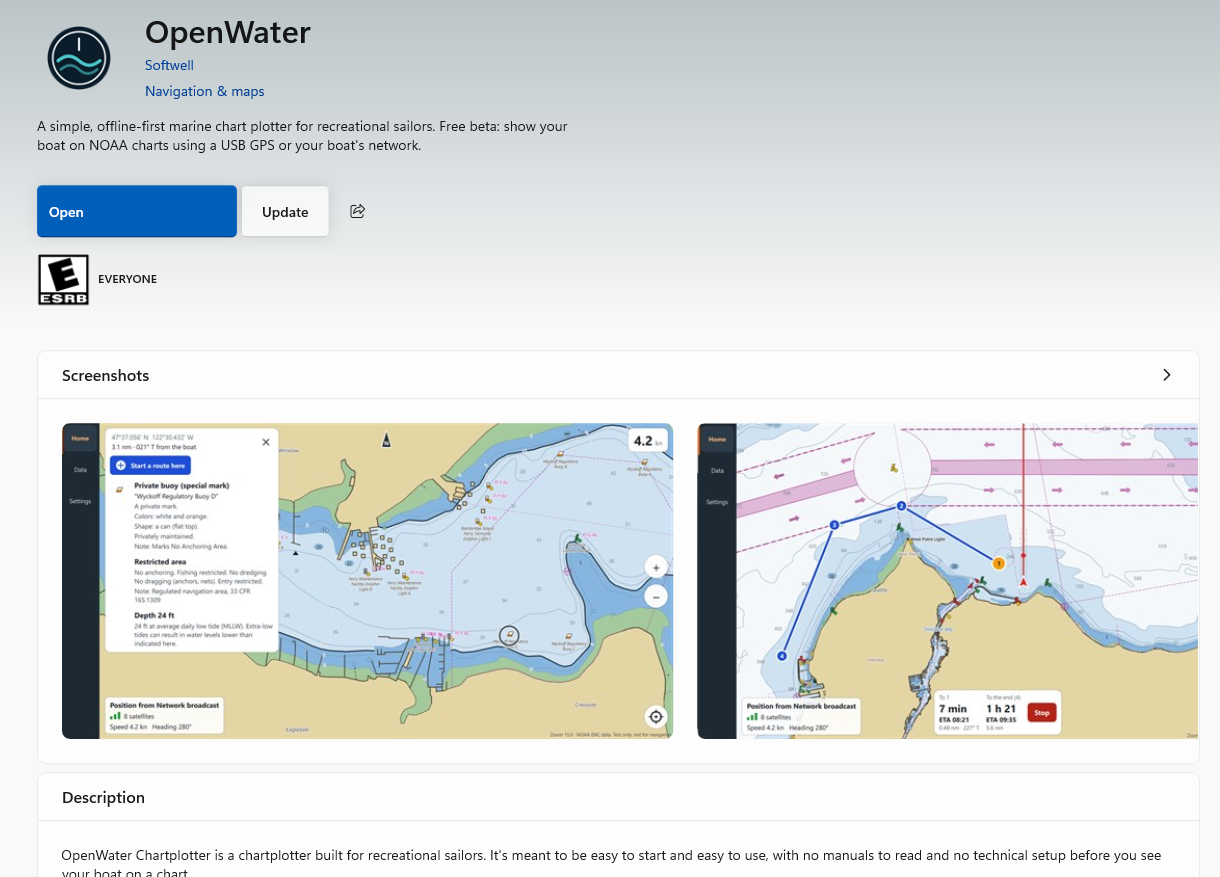
-
Press Open, or later open the Start menu and choose OpenWater Chartplotter.
The first start shows a short Before you start notice about navigation safety; press I understand. Behind it is a map of the world and a banner, “No charts on this device yet”, with a Get charts button. Charts can also be added later under Settings, then Charts.
Connecting a GPS
A USB GPS plugged into the PC is found by itself; there is nothing to set up. Other sources, such as your boat’s network, are under Settings, then Connections.
Updates
The Store updates OpenWater by itself, like the rest of your apps. To check straight away, open the Store, choose Library, then Get updates. On OpenWater’s own Store page, an Update button appears next to Open when a newer version is waiting.
Removing OpenWater
Open Settings, then Apps, then Installed apps, find OpenWater, and choose Uninstall.
OpenWater is not a certified navigation system. Don’t rely on it as your only means of navigation, and keep a lookout.