
How OpenWater reaches a Raspberry Pi
The blog post covers what installing OpenWater on a Pi is like. This note is about how it works underneath: what I ship, where it lives, how an update gets from my PC to a boat, and why the very first install still ends in a scary-sounding password prompt. The step-by-step version for users is in the documentation.
The shape of it
Raspberry Pi OS is Debian underneath, and Debian already has a good answer to “install this and keep it updated”: a .deb package plus an apt repository, which is just a folder of static files that a Pi’s software tools know how to read. I didn’t invent anything. The pieces:
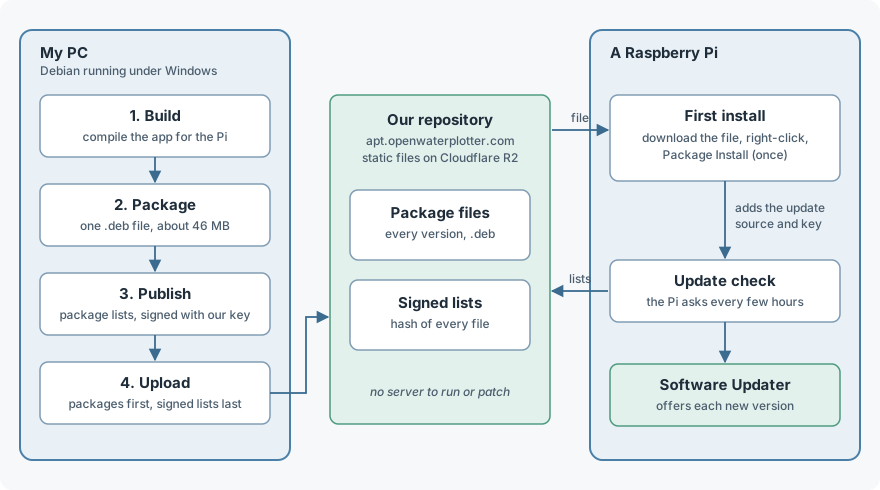
The package. I build the app on my PC and cross-compile it for the Pi, never on the Pi itself, then wrap it into one arm64 file of about 46 MB. It installs under /usr/lib/openwater-chartplotter, adds the OpenWater Chartplotter menu entry and icon, and a udev rule so a USB GPS works without adding the user to a group. It does not bundle Qt: it depends on Debian’s own Qt 6 packages, so Qt’s security fixes arrive with the Pi’s normal updates instead of waiting for me. That also keeps Qt dynamically linked, which the LGPL wants.
The repository. A publish step collects every .deb into a pool/ folder and builds a Packages list with a SHA-256 hash of each file. It then builds a Release file that hashes those lists and signs it with a key I keep off the website and out of the repository. A Pi trusts the signature, the signature vouches for the lists, and the lists vouch for each file. Change one byte of a package and apt refuses it with “Hash Sum mismatch”. I tested exactly that.
The hosting. The files sit in a Cloudflare R2 bucket at apt.openwaterplotter.com. The website itself can’t serve packages (Cloudflare Pages limits files to 25 MiB), and R2’s free tier covers 10 GB of storage with no charge for downloads, which is what a package repository mostly is. I also have no server to run or patch: it’s static files.
How an update flows
The first package installs a small source entry in /etc/apt/sources.list.d that points at the repository and names the public key to check it against. From then on:
- I raise the version number in one place, shared with the Windows package, merge the change, and build only from the latest merged code. The packaging step refuses anything else, so a half-finished branch can’t be released by accident.
- The publish step signs the new lists, and the upload step sends them. The upload order matters: packages first, signed lists last, so a Pi that checks in the middle never reads a list that names a file that isn’t there yet.
- The lists are served with a five-minute cache time, so a Pi that checks soon after sees the new version.
- The Pi runs its own periodic update check, sees the newer version, and offers it in the Software Updater with the rest of its updates.
The Pi checks the repository from time to time to see if there is an update, whenever the internet is available.
What I learned
A double-click doesn’t install a .deb. I wrote the first instructions as “double-click the file”. In the Pi’s file manager, a double-click opens it as an archive and shows you what’s inside. The install is right-click, Package Install. The docs and the blog post now say so, which is a reminder to run instructions on a clean machine before publishing them.
Don’t delete a config file in a package’s removal script. My first design shipped the source entry as a conffile, which dpkg tracks specially. The removal script deleted it, and the next install stopped at a “keep or replace?” prompt. The entry is now a template in the package folder that the install script copies into place if it is missing. A second lesson from the same test: dpkg hands the old version to the install script even after a plain remove, so “is this the first install?” can’t be answered by looking at the version. It has to look for the file.
The updater is slower than apt. After a release, apt update on the Pi saw the new version immediately, but the graphical updater kept showing its previous check until its next scheduled run or a login. The docs say so, because a tester will otherwise assume the release is missing.
A desktop has different graphics than a kiosk. Running in a window on the Pi desktop at first drew a blank map with no error. Under a desktop Qt picks desktop OpenGL; MapLibre’s shaders are written for OpenGL ES, which the full-screen kiosk already used. Asking Qt for an ES context fixed it.
The mouse wheel arrived as a touchpad. The first tester run found that, under Wayland, a wheel’s events come from a “touchpad” device, and the map’s wheel handler ignored them. Zooming with a wheel did nothing until it accepted every device type.
Why it still says “untrusted”
After the right-click, the Pi shows Authentication is required to install untrusted software. After being told the package is signed, that is an unsettling moment for anyone, so it’s worth being exact about what is and isn’t going on.
The signature protects the repository: the lists and, through them, each file. A package installed directly from a downloaded file never goes through that check. The Pi’s installer (PackageKit) sees a loose file that doesn’t come from a software source it knows, and asks for the password. As far as I can tell it asks this for any package installed from a file, whoever made it.
That is a chicken-and-egg problem: the Pi can’t trust the repository until it has the source entry and key, and the first package is what installs them. Microsoft’s VS Code package for Linux takes the same route, and it is the model I followed. After this one prompt, updates come from the repository, are signature-checked, and don’t ask again.
Ways to shrink it, none of which I’ve built:
- An SD card image with the source already in place, for dedicated devices. This is already on the plan for people who want a plotter that does nothing else, and the first install is then done before the card goes in the Pi.
- A copy-and-paste setup step that adds the source before installing. It works and removes the warning, but it means typing commands, and I want the install to stay as user friendly and straightforward as possible.
- Windows-style reputation. On Windows the Store signs the package, and Microsoft’s name does the vouching. The Pi has no equivalent for a small independent project, and I don’t expect to get one soon.
For now the honest answer is in the docs: expect the prompt, and know what it is.
Measurements
| What | Device | Result |
|---|---|---|
| Package size | arm64 .deb |
about 46 MB |
| Flat-out pan at 1080p, full-screen kiosk | Pi 4B | 32.5 frames a second |
| Same, in a desktop window | Pi 4B | 28.4 frames a second (about 13% lower) |
| Following a moving boat needs | about 5 frames a second |
What’s next
- The opt-in “start OpenWater when this device turns on” setting, then the ready-to-flash SD card image.
- Write up what the first testers find, including how OpenWater runs on a Pi 5, which the beta testers will try.
OpenWater is not a certified navigation system. Don’t rely on it as your only means of navigation, and keep a lookout.